
Getting Started
Sign in, buy data in Catalog, complete checkout, then retrieve files from Your Data or SFTP.
This page covers the basic customer workflow: access the app, buy data, complete checkout, and retrieve the files in the format you need.
First Workflow
- Sign in from
Go to app. - Open
Catalog. - Add data to
Your Cart. - Complete payment in Stripe.
- Open
Your Data. - Download a file from the row menu, or move to
FTP Serverfor bulk transfer.
Access The App
Start from the website and click this button to open the app:

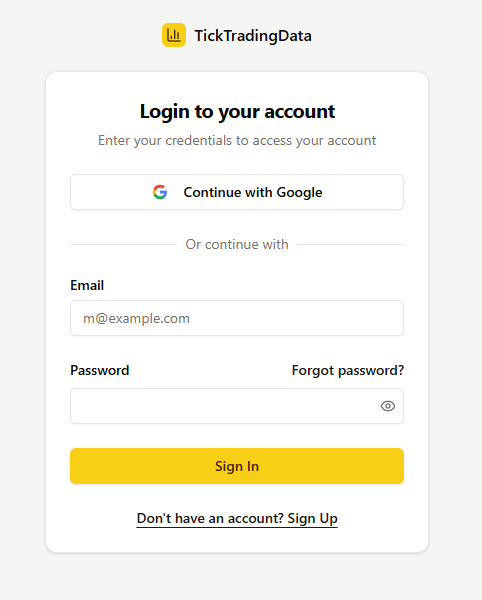
Then sign in with Google or email. If you do not have an account yet, use Sign Up.
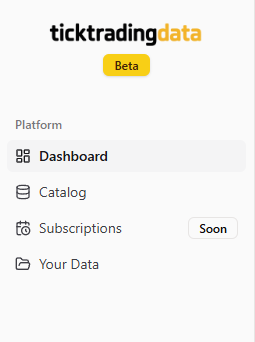
After login, the left navigation gives you the sections used in the basic workflow. In practice, the first two you will use are Catalog and Your Data.
Buy In Catalog
Catalog supports two purchase paths:
Buy Complete Packfor one or more full years across the full catalogBuyon a symbol card for an individual instrument
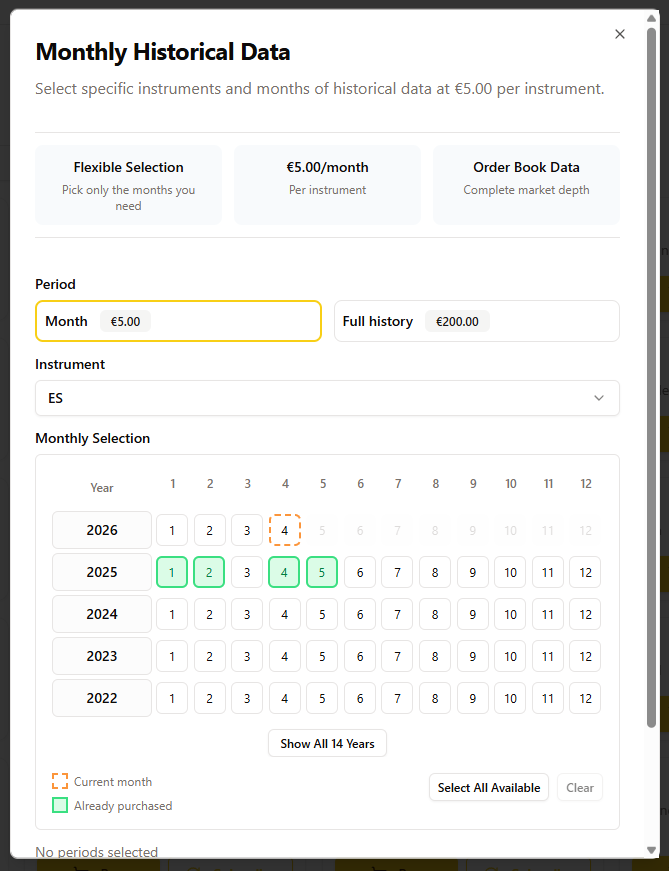
For individual instruments, the purchase modal lets you choose specific months or switch to Full history.
The current month can also be purchased. As the month progresses, the corresponding files become available in your account.
After adding an item, continue shopping or go directly to the cart.
Complete Checkout
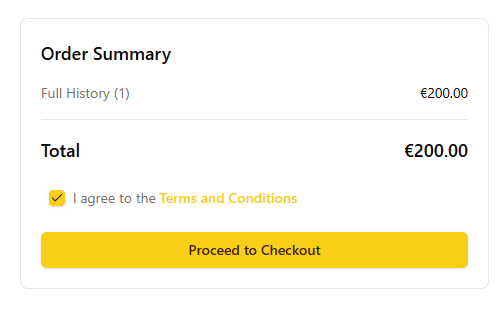
Open Your Cart, accept the Terms and Conditions, and click Proceed to Checkout.
Stripe handles payment. After a successful checkout, the purchased files are added to your account automatically.
Retrieve Files In Your Data
Your Data is the main page for purchased files.
From here you can:
- filter the table
- switch between file view and month view
- inspect a sample
- open file details
- download a file directly
The web download flow is currently file by file. In practice, you choose a row, open Download, and retrieve the daily file in the format you want.

The download menu currently offers four outputs:
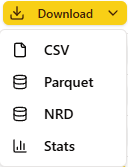
| If you want... | Choose... |
|---|---|
| maximum compatibility with external tools | CSV |
| a better default for analytics in Python, pandas, or Polars | Parquet |
| a NinjaTrader-oriented workflow | NRD |
| a quick summary before downloading the full file | Stats Files |
Use FTP Server For Bulk Transfer
For larger pulls, the practical download path is FTP Server, not repeated web downloads.
Use this button in Your Data to open the connection details:
FTP Server opens the connection details for your account.
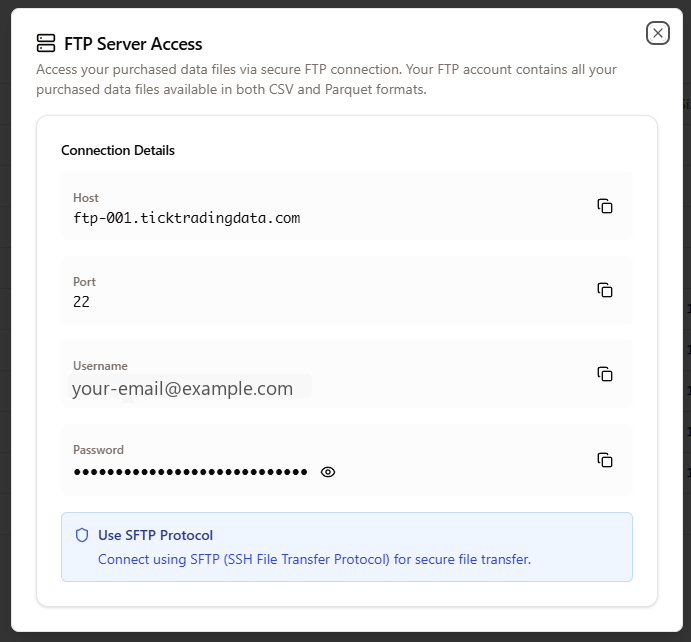
Use these values in your SFTP client:
Host:ftp-001.ticktradingdata.comPort:22Username: your account emailPassword: the password shown in the modal, or use the copy buttons directly
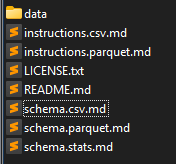
After you connect with an SFTP client such as WinSCP or FileZilla, the root shows the documentation and schema files together with the data directory, which is the entry point for the downloadable datasets.
Continue with SFTP Download if you need repeatable bulk transfer or want to move larger file sets to a workstation or server.
If you prefer a terminal workflow for larger pulls, see CLI Downloader.
Other Common Tasks
- Use
Billingto open the Stripe customer portal for invoices, payment methods, and billing history. - Use
Contactto report a bug, suggest an idea, or contact support.
Continue With The Right Workflow
| Your next goal | Best next page |
|---|---|
| Download a few files manually in the browser | Web Download |
| Move many files to a workstation or server | SFTP Download |
| Use a terminal-based bulk download workflow | CLI Downloader |
| Replay sessions in NinjaTrader | NinjaTrader |
| Analyze data in Python or a custom research stack | Python Analysis |
Start with the next task you want to complete.