
SFTP Download
Connect to the TickTradingData SFTP server from Your Data and retrieve larger file sets by format, symbol, and expiration.
Use SFTP when you need more than a few files, prefer a file client, or want a repeatable transfer workflow outside the browser.
Open The Connection Details
In Your Data, open the FTP access modal from this button:
The modal provides the connection values for your account:
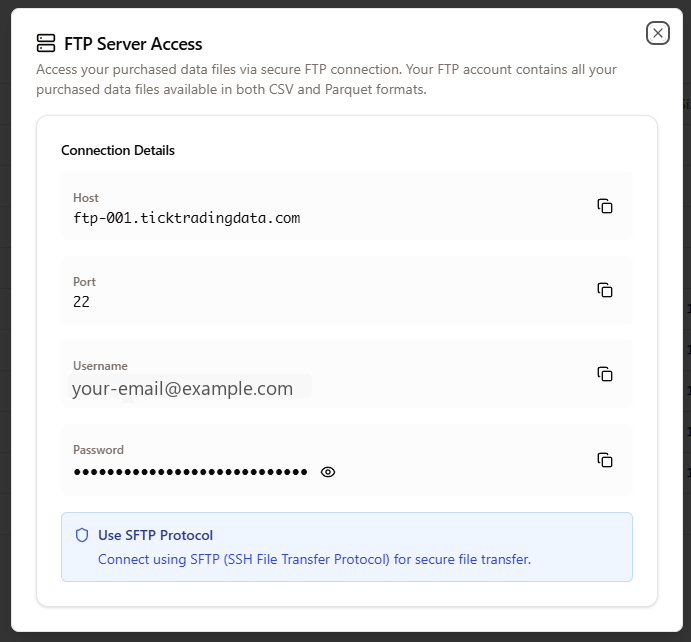
Use these values in your SFTP client:
Host:ftp-001.ticktradingdata.comPort:22Username: your account emailPassword: the password shown in the modal
Use the copy buttons in the modal when possible.
Use SFTP, Not Plain FTP
The connection uses SFTP on port 22.
Do not configure the client as plain FTP or FTPS. The modal explicitly tells you to use SFTP.
Recommended Clients
Any SFTP client works. Practical options:
WinSCPon WindowsFileZillaif you want a cross-platform GUIsftpfrom the command line if you prefer a terminal workflow
What You See After Login
After connecting, the root shows documentation files together with the data directory:
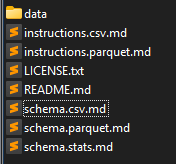
At the root you should expect files such as:
README.mdinstructions.csv.mdinstructions.parquet.mdschema.csv.mdschema.parquet.mdschema.stats.mdLICENSE.txtdata/
The actual downloadable datasets live under data/.
Folder Structure
The server is organized by format, then symbol, then expiration.
data/
  csv/
    {symbol}/
      {expiration}/
        YYYYMMDD.csv.gz
  parquet/
    {symbol}/
      {expiration}/
        YYYYMMDD.parquet
  stats/
    {symbol}/
      {expiration}/
        YYYYMMDD.stats.json
  nrd/
    {symbol}/
      {expiration}/
        YYYYMMDD.nrd.gz
Practical interpretation:
- choose the format first
- then open the symbol folder
- then the contract expiration
- then download one file or the whole folder you need
The nrd branch contains the native replay-oriented files used in NinjaTrader workflows.
Typical SFTP Workflow
- Open
FTP ServerinYour Data. - Copy the host, port, username, and password.
- Connect with your SFTP client.
- Open
data/. - Choose
csv,parquet,stats, ornrd. - Navigate to the symbol and expiration you need.
- Download the individual daily files or the full folder.
When To Prefer SFTP
Use SFTP when:
- you need many files
- you want to resume or repeat transfers
- you prefer browsing folders instead of downloading one file row at a time
- you are moving data to a workstation or server
If you only need a few daily files manually, Web Download is faster.
If you prefer the terminal over a GUI SFTP client, continue with CLI Downloader.